Documentation
Everything you need to get Reelware running in your Shopware store.
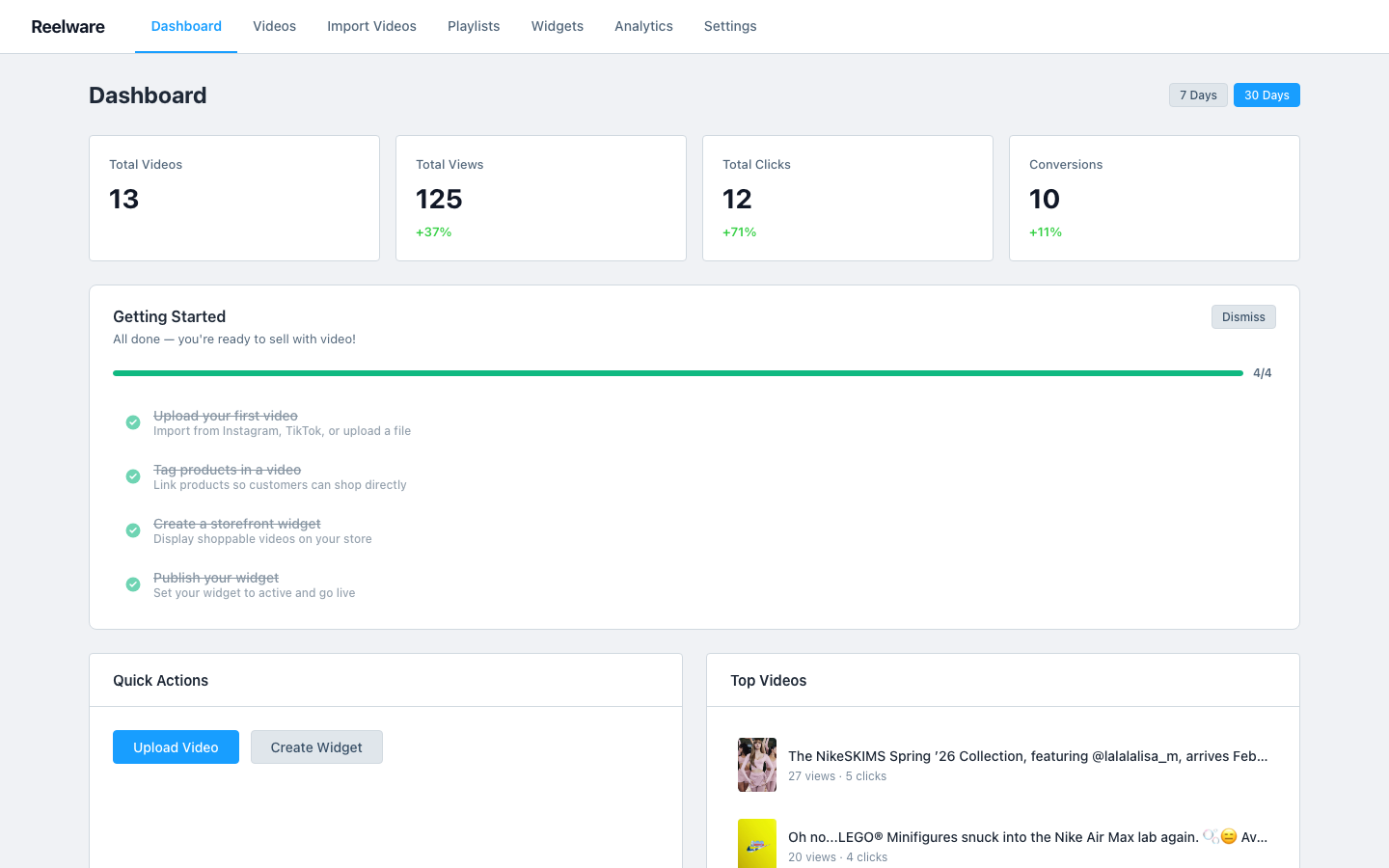
Quick Start
- Install Reelware from the Shopware Store
- Open the Reelware module in your Shopware Admin panel
- Upload your first video or paste an embed URL
- Tag products using the visual editor
- Place a widget on your storefront via Shopping Experiences or the app script
Installation
Reelware is a Shopware 6 App — no plugin installation or server access needed. Install it directly from the Shopware Store, and it will register itself with your shop automatically.
Requirements
- Shopware 6.5 or later
- Active Shopware Store account
- No server requirements — Reelware is fully hosted (SaaS)
Video Management
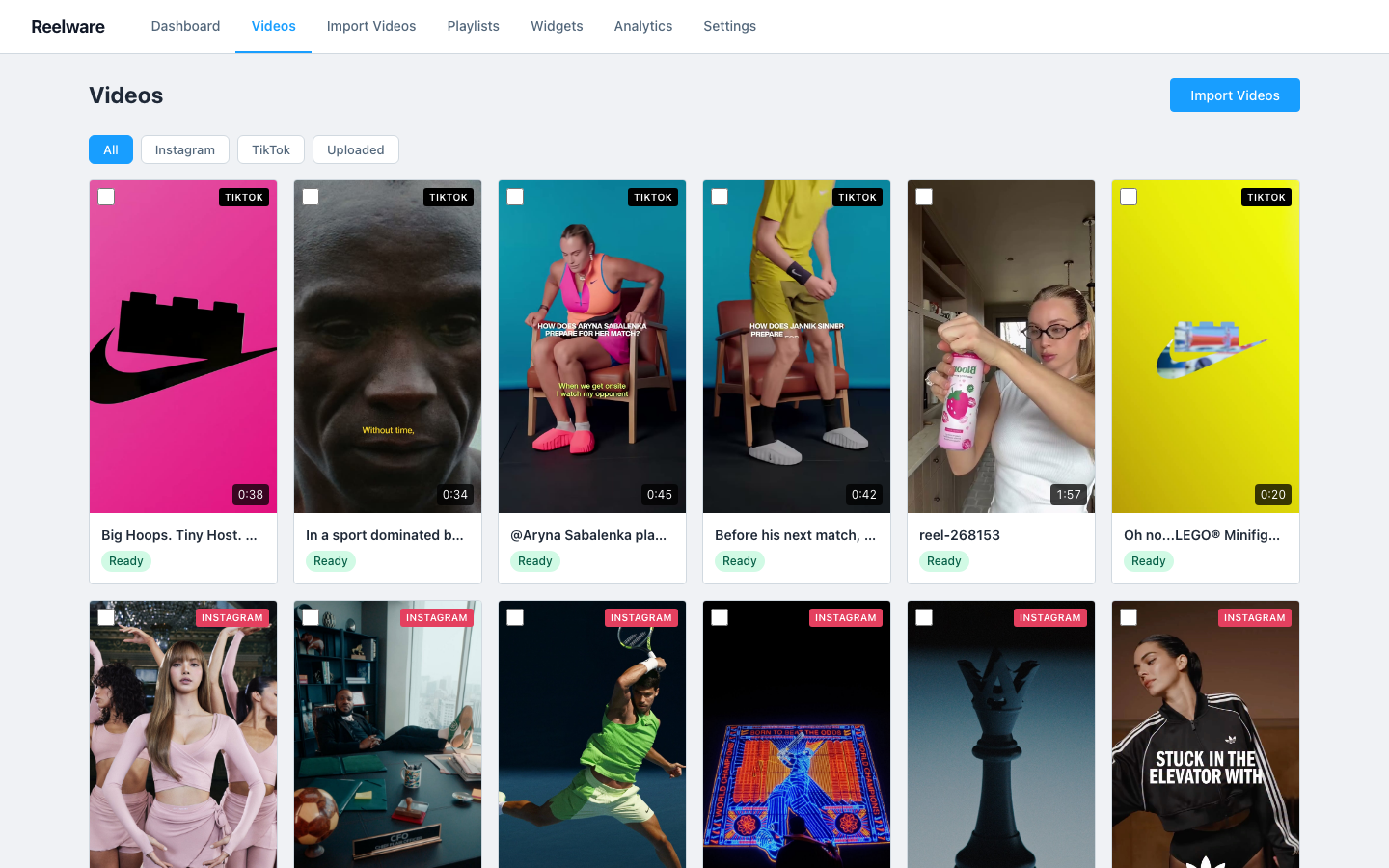
Uploading Videos
Navigate to Reelware → Videos in your admin panel. Drag and drop a video file (MP4, MOV, WebM — up to 2GB) or click to browse. Videos are automatically transcoded to HLS for adaptive streaming.
Embedding External Videos
Click "Add Embed" and paste a URL from YouTube, Vimeo, TikTok, or Instagram. Reelware fetches the metadata and thumbnail automatically. External videos are not transcoded — they play via their native embed player.
Product Tagging
Open any video and click "Edit Tags" to open the visual tagging editor. Scrub to the desired timestamp, click on the video frame to place a hotspot, then search and select a product from your synced catalog. Set the time range for when the tag should be visible.
- Position: Drag the hotspot to any location on the video frame
- Time range: Set start and end timestamps for when the tag appears
- Max tags: Depends on your plan (3, 10, or unlimited)
Storefront Widgets
Video Player
The <reelware-player> Web Component renders a full video player with
product hotspots. It works in any Shopware theme and loads under 50KB.
Widget Types
| Widget | Use Case |
|---|---|
| Product Page Player | Show product videos on PDP, below the main image |
| Homepage Carousel | Feature shoppable videos on your homepage |
| Category Grid | Display videos filtered by product category |
| Floating Mini-Player | Video continues playing as user scrolls |
CMS Integration
Reelware adds custom CMS elements to Shopware's Shopping Experiences editor. Drag the "Reelware Video" or "Reelware Gallery" element into any layout to place shoppable videos anywhere in your store.
Analytics
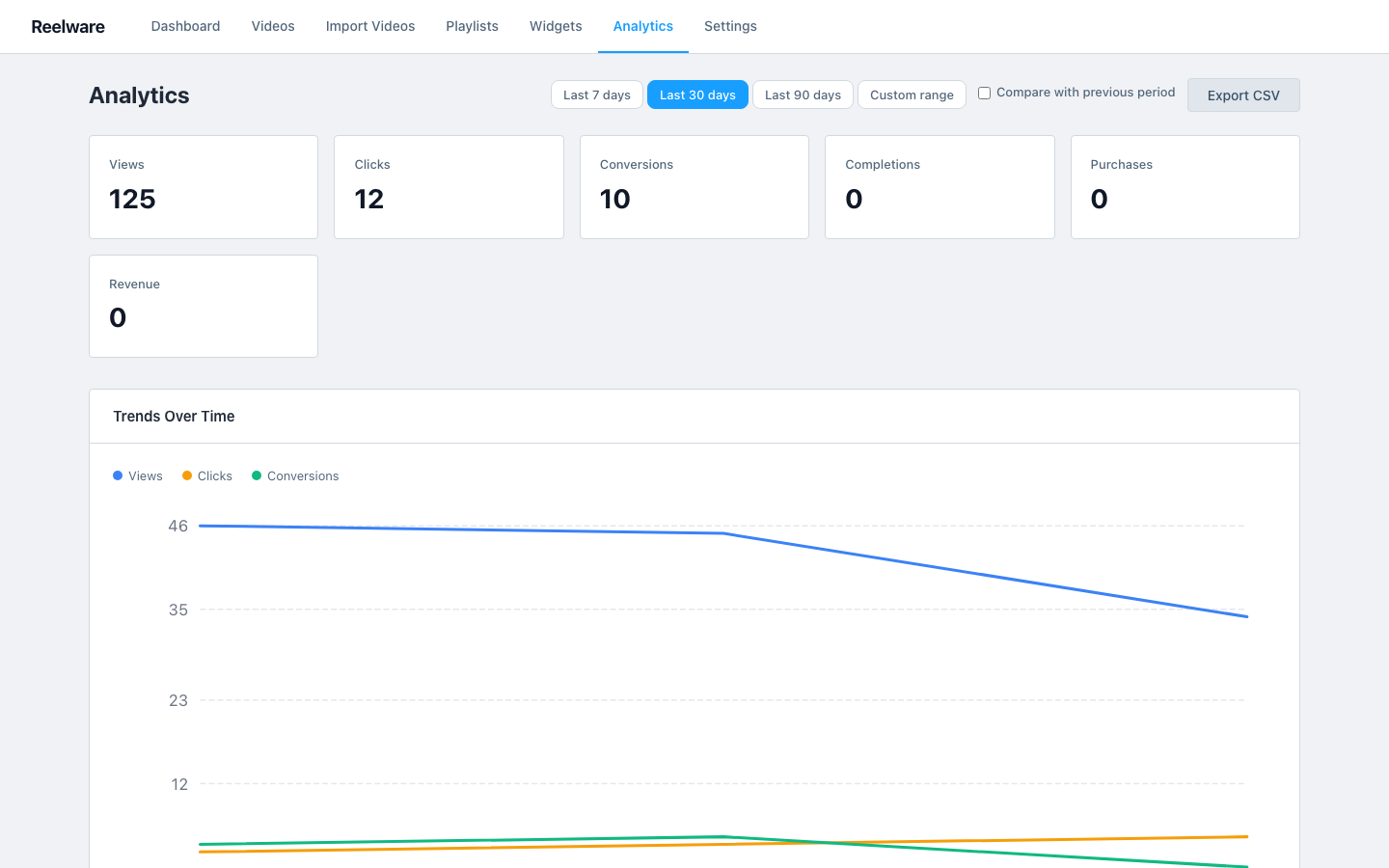
The analytics dashboard shows views, clicks, and conversions per video and product. Use the date range picker to analyze specific periods, and export data as CSV.
- Views: Play, pause, and completion events
- Engagement: Average watch time and drop-off points
- Conversions: Hotspot clicks, add-to-cart, and purchase attribution
API Reference
All endpoints are available at https://api.reelware.app/api/v1/.
Authenticate with your shop's JWT token (issued during app installation) or
a storefront API key for read-only widget access.
Full API documentation is available at api.reelware.app/docs.
GDPR & Privacy
Reelware is designed to be GDPR-compliant out of the box. All data is stored in EU data centers (Hetzner, Germany). Analytics are anonymised by default. See our full Privacy Policy for details.
- Data export: Settings → GDPR → Export Data
- Data deletion: Settings → GDPR → Delete All Data
- DPA: Available on request at privacy@reelware.app
Need Help?
Email support@reelware.app or use our contact form. We typically respond within one business day.